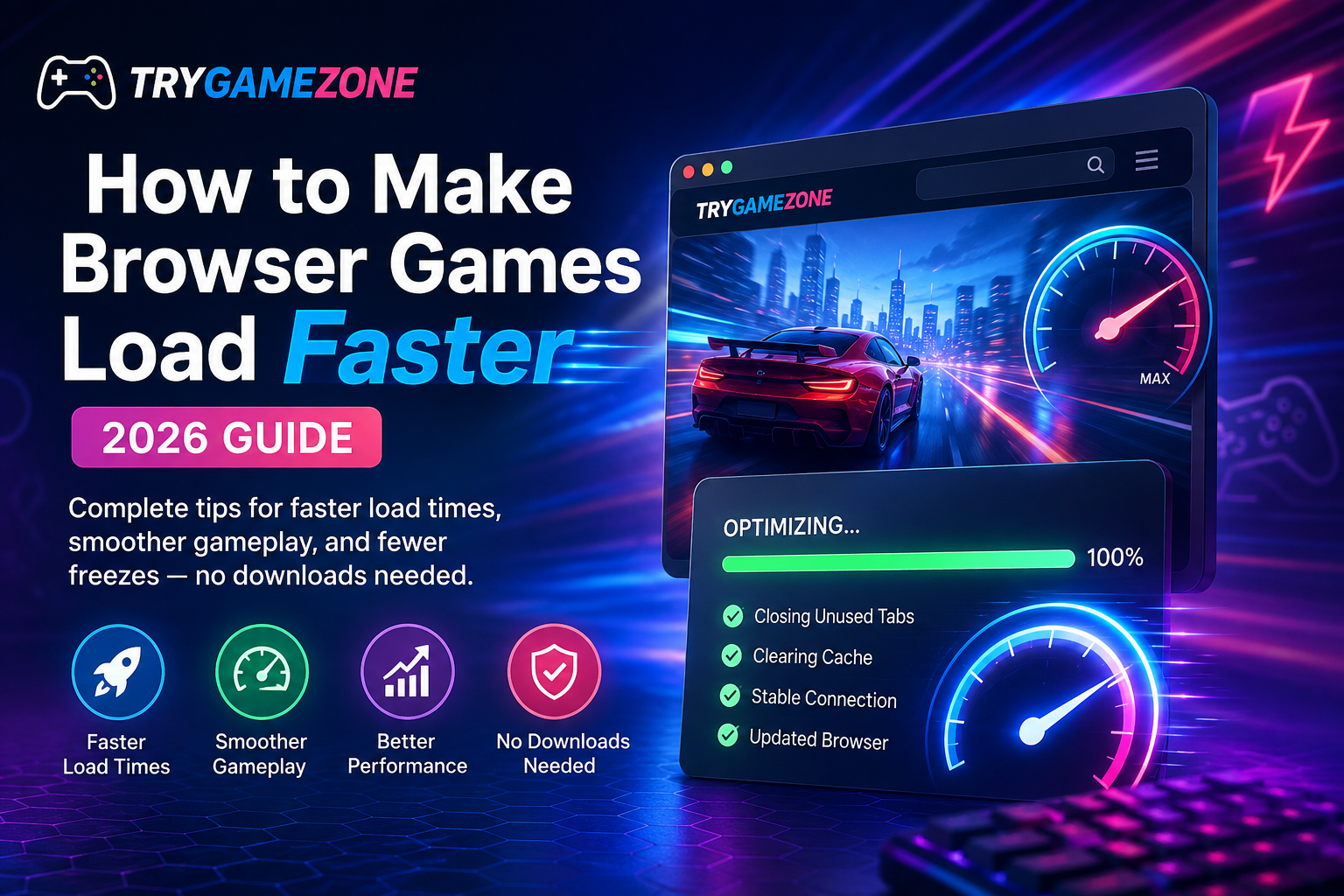
How to Make Browser Games Load Faster: A Complete 2026 Guide
Seven practical fixes for faster load times, smoother gameplay, and fewer freezes when you play games in your browser.
Nothing kills the fun of a quick gaming break faster than a game that takes forever to load — or worse, freezes mid-round. The good news: most slow browser games aren't the game's fault. A few small changes to your browser and device can make a real difference in loading speed and overall smoothness.
Here's a practical, no-nonsense guide to getting the fastest possible experience when you play free online games in your browser.
1. Close Unused Browser Tabs
This is the single biggest fix, and most people skip it. Every open tab uses memory and processing power, even if you're not actively looking at it. If you've got a dozen tabs open in the background, your browser is splitting resources between all of them — including the game you're trying to play.
Quick fix: Before starting a game, close tabs you're not using, especially anything playing video or auto-refreshing such as social media feeds, news sites, or streaming tabs.
2. Use a Modern, Updated Browser
Browser games rely on your browser's built-in engine to render graphics and run code smoothly. Older browser versions are slower at this and may not support newer optimizations that game developers rely on.
Quick fix: Use the latest version of Chrome, Firefox, or Edge. Most browsers update automatically, but it's worth checking your browser's settings page to confirm you're not several versions behind.
3. Check Your Internet Connection, Not Just Your Device
Loading delays are often mistaken for a slow computer when the real issue is a weak or unstable internet connection. Browser games need to download game assets such as images, sounds, and level data before you can play, so a slow connection directly affects load time.
Quick fix: If a game is slow to start, try restarting your router, moving closer to your Wi-Fi router, or switching from Wi-Fi to a wired connection if possible.
4. Disable Unnecessary Browser Extensions
Ad blockers, VPN extensions, and other browser add-ons can sometimes interfere with how a game loads — particularly extensions that block scripts or trackers, which some games rely on to function properly.
Quick fix: If a specific game won't load at all, try disabling extensions one at a time, or use an incognito/private window where extensions are often disabled by default, to see if one is the culprit.
5. Clear Your Browser Cache Periodically
Your browser stores cached files to speed up sites you visit often — but over time, stale or corrupted cached assets can cause games to load incorrectly.
Quick fix: Clear your cache when games that used to load fine start acting sluggish or glitchy. You generally do not need to clear it constantly.
6. Give the Game a Moment — Some Titles Are Just Bigger
Not every slow load is a problem you can fix. Games with detailed 3D graphics or large levels, such as shooting or adventure titles, naturally take longer to load than simple puzzle games, especially on the first visit before assets are cached.
Quick fix: If a heavier game is loading slowly, let it finish once. It will often load faster on the next visit because reusable assets can be cached by the browser.
7. Play on a Device That Matches the Game's Demands
Simple, low-graphics games such as puzzle, card, and hypercasual titles will run well on almost any device. But if you're trying to run a detailed shooting or 3D adventure game on an older phone or a computer with limited memory, no browser setting will fully fix that.
Quick fix: For lighter, low-end-friendly options, try Puzzle Games or Arcade Games. These categories are a good place to start when you want quick-loading gameplay.
Quick Recap
- Close unused tabs before playing.
- Keep your browser updated.
- Check your internet connection, not just your device.
- Disable extensions that might interfere.
- Clear stale cache data when games become glitchy.
- Let heavier games finish loading once — they may be faster next time.
- Match the game to your device's capabilities.
Ready to Play?
With these fixes in place, you should notice faster load times and smoother play across the board. Head back to TryGameZone and jump into our Trending Games or browse New Games — all playable instantly in your browser, with no downloads required.
FAQ
Why do some browser games take longer to load than others?
Games with more detailed graphics, sound, and levels have more data to download before they can start. Simpler games such as puzzle, card, and hypercasual titles usually load faster because they have less data to process.
Does clearing my cache delete my game progress?
It depends on how a specific game saves progress. Clearing cached files is different from clearing site data, cookies, or local storage. If you care about saved progress, check the game's save method before clearing broader browser data.
Can I speed up games on mobile the same way?
Yes. Closing background apps, using an updated mobile browser, and checking your Wi-Fi or mobile data connection can all help on phones and tablets too.